Why Default Settings Rarely Protect You
Social media platforms are designed to encourage sharing - publicly, broadly, and often with advertising partners. That design philosophy is reflected in their default privacy configurations, which typically maximize your visibility and data availability rather than protect it. If you created an account and never revisited those settings, your information is likely more exposed than you realize.
This isn't speculation. Platform privacy policies and independent audits have consistently documented how default settings enable broad data collection, including location signals, browsing behavior, and contact information. If you're new to thinking about this topic, our digital privacy primer covers the core concepts and real risks behind these practices.
The good news: most platforms now offer meaningful controls - you just have to know where to find them and what they actually do.
What you will need
The Settings That Make the Biggest Difference
Not all privacy settings carry equal weight. Some affect only cosmetic visibility; others limit how your data is used by advertisers and third parties. Focus your attention on these categories first:
Audience Controls (Who Sees Your Posts)
Every major platform lets you restrict who can see your content - the general public, your connections only, or a custom group. Setting your default post audience to friends or followers only prevents strangers and data scrapers from reading your profile. Go further by locking down your friends list, tagged photos, and past posts.
Ad Data and Personalization
Platforms build advertising profiles from your activity. Look for settings labeled "ad preferences," "data used for ads," or "interest-based advertising" and review what data categories are enabled. You can typically opt out of using off-platform browsing data and limit interest targeting, though some ad tracking will remain. For broader context on how recommendation systems use this data, see what people get wrong about social media algorithms.
Location Access
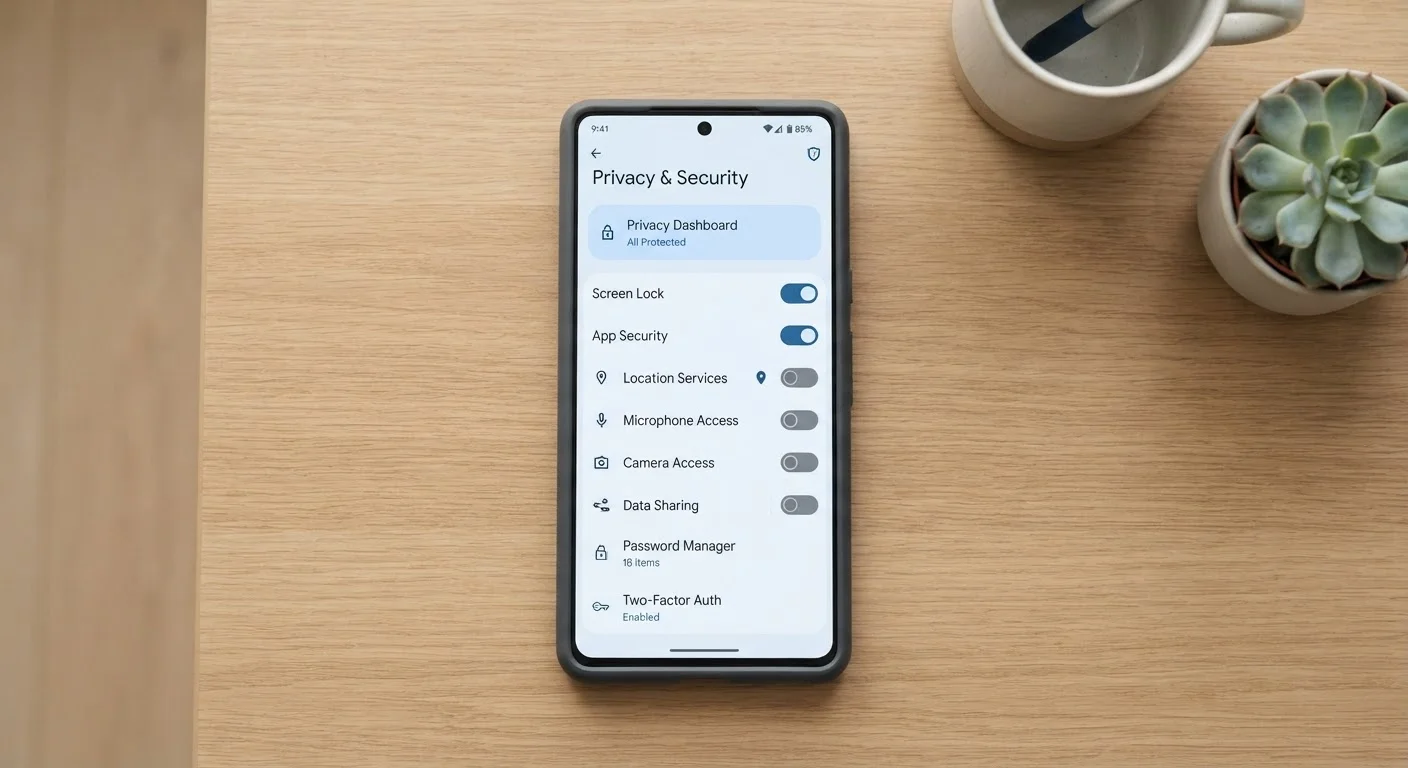
Many platforms request continuous location access but function fine without it. Revoke precise location permission at the device level through your phone's app settings, not just within the app. If you're unsure what permissions different apps are requesting, our guide to app permissions explains which ones warrant concern.
Third-Party App Connections
"Login with Facebook" and similar single sign-on options are convenient, but they create a data bridge between the social platform and the third-party app. Review your connected apps list on each platform and revoke access for any service you no longer use actively. This is one of the most overlooked vectors for data exposure.
Schedule a Quarterly Privacy Check-In
Privacy settings don't stay fixed - platforms introduce new features and data controls throughout the year, often with opt-in defaults that favor data sharing. Setting a reminder to review your key settings every three months takes less than 15 minutes and keeps your preferences current. Treat it like updating a password: routine maintenance that pays off over time.
Step-by-Step: Auditing Your Privacy Settings
Follow these steps across your active social accounts. The exact menu names vary by platform, but the underlying controls are similar across most major services.
List every active social account you have
Before changing anything, write down every platform where you have an account - including ones you rarely use. Dormant accounts still hold personal data and may have outdated settings. Prioritize platforms where you've shared the most personal information.
Navigate to each platform's Privacy or Security settings
On most platforms, privacy controls are found under your profile menu - look for Settings & Privacy, Account Settings, or a similar label. On desktop browsers you'll typically have access to the most complete set of options, including some not visible in mobile apps.
Set your default post audience to friends or followers only
Find the audience or visibility setting for new posts and change it from "Public" to "Friends," "Followers," or your preferred restricted group. Also look for an option to apply this change retroactively to past public posts - many platforms offer a bulk update tool.
Review and restrict your profile information visibility
Beyond posts, your profile fields - email address, phone number, birthday, employer, hometown - often have separate audience controls. Set each sensitive field to visible only to you or to trusted connections. Phone numbers and email addresses in particular should not be publicly visible.
Opt out of ad personalization and off-platform data use
In the Ads or Data & Privacy section, look for toggles related to interest-based advertising and off-platform activity. Disable any setting that allows the platform to use your browsing history from other websites to target you. Note that some controls may require opting out individually for each data category.
Revoke unnecessary third-party app access
Find the Apps and Websites or Connected Apps section in your settings. Review every listed app and remove any you no longer use, don't recognize, or gave access to years ago. Each connected app may have received permission to read your profile data, friends list, or even post on your behalf.
Disable or limit location sharing
Within the platform's settings, turn off any location-based features you don't actively use. Then go to your device's operating system settings, find the social media app in your app list, and set location access to Never or Only While Using the App - whichever fits your usage. Avoid "Always" access for social apps.
Once you've completed a review, consider building a habit of revisiting settings every few months. Platforms update their policies and introduce new data features regularly - sometimes without prominent notice. Understanding why platforms shift their rules can help you stay ahead of those changes.
For a broader set of protective habits beyond settings alone, everyday privacy practices security researchers recommend is a practical companion guide.
What These Settings Can and Cannot Do
Adjusting your privacy settings meaningfully reduces your exposure - but it does not make you invisible to the platforms themselves. Social networks still collect behavioral data for internal purposes under their terms of service, even when ad personalization is turned off. What you're controlling is primarily how that data is used externally and who can see your content.
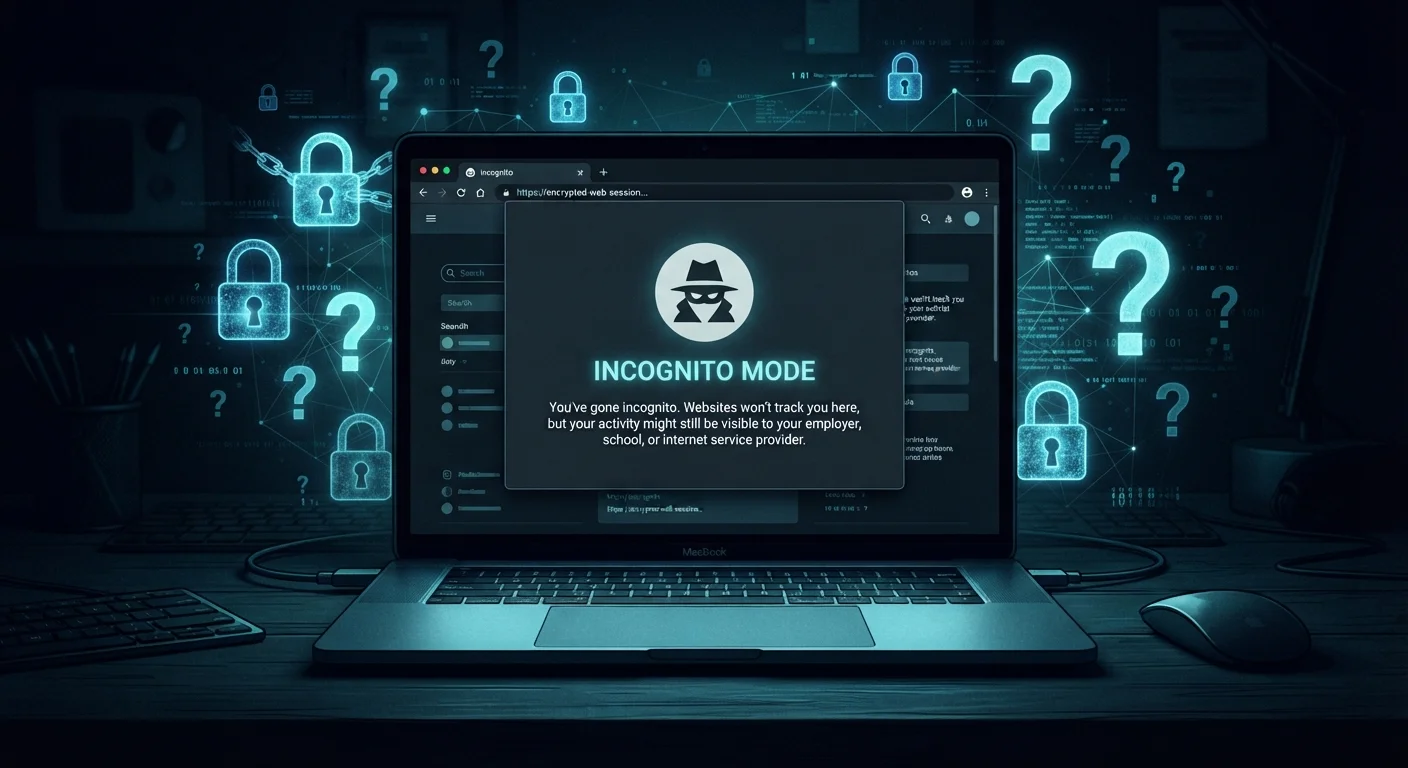
Think of privacy settings as reducing your surface area, not eliminating risk entirely. Pairing these changes with browser-level privacy controls creates a more complete layer of protection across your online activity. And when you're joining new platforms, setting up your account with privacy in mind from the start is significantly easier than retrofitting settings later.
The goal isn't perfection - it's making informed, deliberate choices about what you share and with whom. These settings give you that control; using them is a straightforward and practical first step.